How to Post on LinkedIn: Step-by-Step Guide for Desktop and Mobile (2026)
Where to click, what to write and how to choose your audience on desktop and mobile, every post format LinkedIn supports, a pre-publish checklist, and the part that decides reach: what you do in the first hour after posting.

Posting on LinkedIn takes about two minutes. Posting something that people actually see, read and respond to takes a little more thought.
This guide covers both. First the mechanics: how to post from desktop and mobile, every format LinkedIn supports, character limits, and audience settings. Then what separates a post that disappears from one that starts conversations: the hook, the format, the timing, and what happens in the first hour, which is where CrossLike helps most.
Quick answer: how to post on LinkedIn
Desktop: click Start a post at the top of your feed → write (up to 3,000 characters) → choose your audience → click Post.
Mobile: tap the Post (+) icon → write → choose your audience → tap Post.
How to post on LinkedIn from desktop
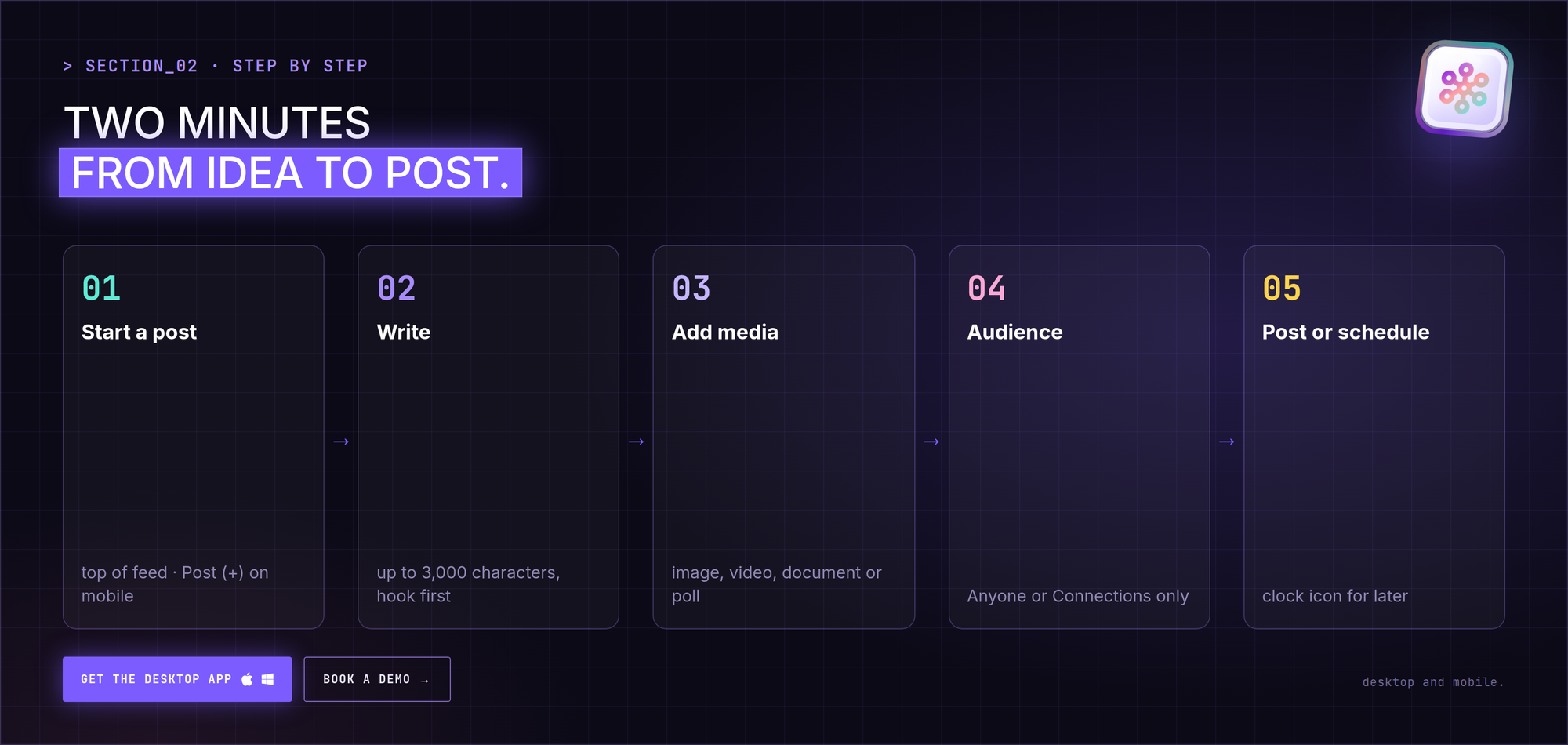
- Click "Start a post" in the box at the top of your homepage.
- Write your post in the text field. You have up to 3,000 characters. For longer pieces, use an article or newsletter instead.
- Choose your audience from the dropdown under your name: Anyone or Connections only.
- Add media or extras: photos, video, a document, a poll, or @mentions of people and companies.
- Post now or schedule. Click Post, or use the clock icon to schedule it for later.
LinkedIn also offers an AI drafting option in the post box. It can help with a first draft; your own experience and voice are what make the post worth reading.
How to post on LinkedIn from mobile
- Tap the Post (+) icon in the bottom navigation.
- Write your post.
- Add media with the photo or video icons, straight from your camera roll or camera.
- Choose your audience.
- Tap Post.
Drafts are saved, so you can start on your phone and finish on your laptop.
Every post format LinkedIn supports
| Format | Best for | Key facts |
|---|---|---|
| Text | Ideas, opinions, stories, questions | Up to 3,000 characters |
| Image(s) | Visual proof, screenshots, behind-the-scenes | One or several images per post |
| Video | Demos, talks, explanations | Upload natively rather than linking |
| Document (carousel) | Frameworks, step-by-step guides | PDF recommended; see our [carousel guide](https://blog.crosslike.club/how-to-post-linkedin-carousel/) |
| Poll | Quick audience feedback | Up to 4 options, set a duration |
| Article / newsletter | Long-form, evergreen content | Stays on your profile; richer formatting |
| Celebration | Milestones, new jobs, team wins | LinkedIn formats the visual for you |
Audience and visibility settings
- Anyone: public, the widest reach. Use this for most posts.
- Connections only: visible to your first-degree network only.
You can change the default in the audience dropdown. There's no true "post silently" option; if you want less attention on a post, publish outside busy hours.
How to write a post people read
Hook first
Only the first two or three lines show before see more. Start with a specific claim, a surprising number, a question or a short story. Avoid "I'm excited to share…".
Length
LinkedIn allows 3,000 characters. Many strong text posts land somewhere around 1,200–1,600: long enough to be useful, short enough to finish. Write what the idea needs, then cut.
Format for mobile
Short paragraphs, one idea each, with blank lines between them. A list when you have a list. A few emojis at most.
Links
A post built around an external link usually reaches fewer people. Put the value in the post and the link in the first comment.
Hashtags and tags
Hashtags have little impact these days; a couple of relevant ones at most, or none. Tag people only when they're part of the story; tags notify them, and they'll notice if they're used as bait.
Timing
Weekday mornings in your audience's time zone are a sensible default. Check your own post analytics after a few weeks and adjust.
Pre-publish checklist
- The first line makes someone want to tap see more.
- One post, one idea.
- Short paragraphs, readable on a phone.
- Audience set to Anyone (unless you meant otherwise).
- Links moved to the first comment.
- Proofread. You can edit the text later, but first impressions stick.
- You have 30–60 minutes free after posting to reply to comments.
The first hour decides reach
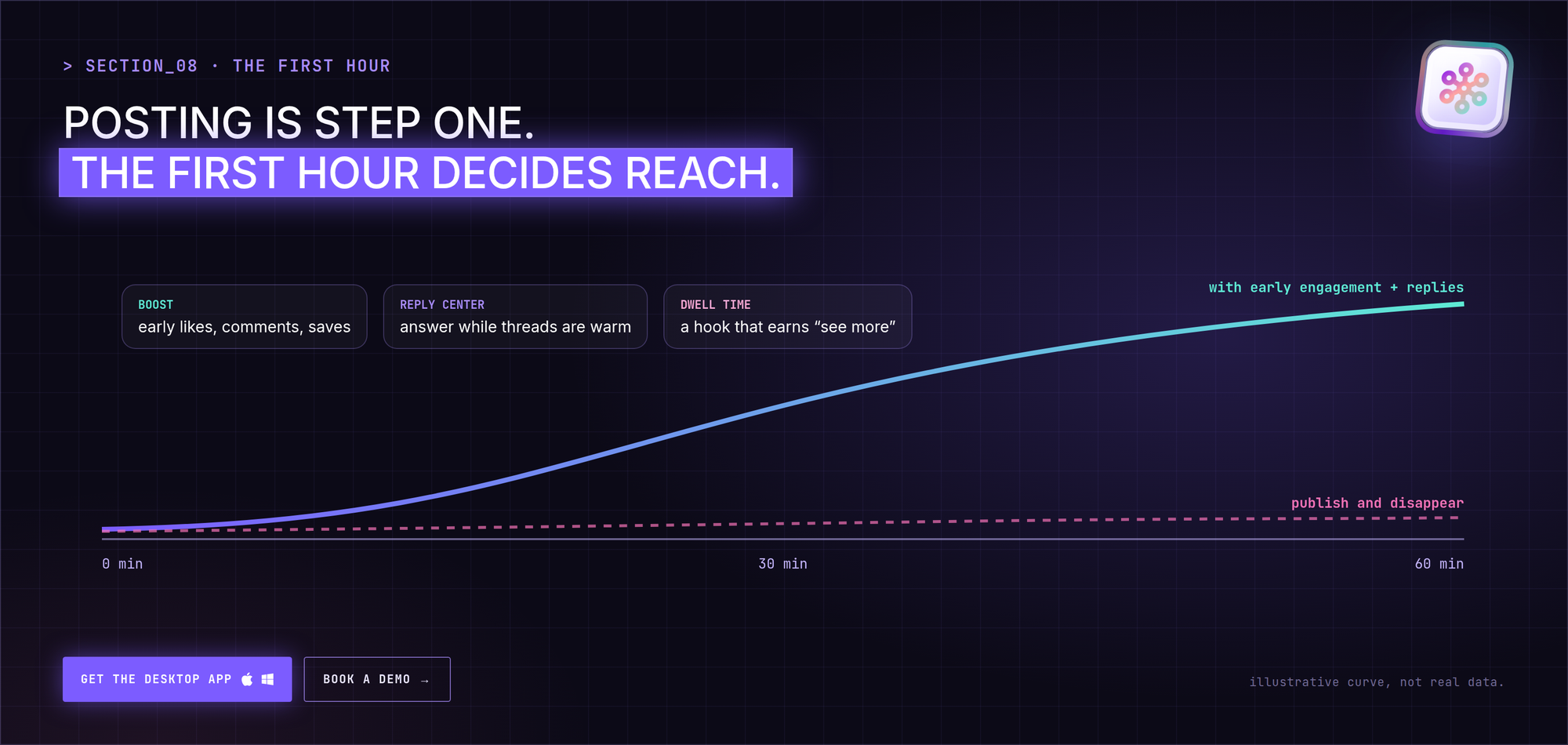
LinkedIn first shows a new post to a small group, often the people who interact with you most. If they react, comment and spend time reading, LinkedIn shows it to more people, including second-degree connections. If nothing happens, the post stalls.
Three things matter most early on:
- Early engagement. Reactions, comments and saves in the first hour.
- Replies. Comments you answer turn into conversations, which keep the post circulating.
- Dwell time. People stopping to read, tapping see more and opening documents.
This is where CrossLike helps:
- Boost: choose a mix of likes, comments, saves and DM shares from real professionals in the CrossLike community, and see the credit cost before you confirm. Your post gets momentum when it matters most.
- Reply Center: every new comment shows up with its context and a ready-to-edit reply. Approve, regenerate or skip, while the thread is still warm.
- Warm Leads: see which people engaging with the post match your ideal customer profile, so you know who to follow up with.
Read more: boosting a post in the first 30 minutes.
Never wonder what to post
The hardest part of posting isn't clicking the button. It's knowing what to say every week. CrossLike's Content Plan gives you a 7-day plan built around the outcome you choose, with ready-to-edit drafts, hooks and calls to action. Copy a draft, make it yours, publish it (or use LinkedIn's scheduler), then let Boost and the Reply Center handle the first hour.
Common mistakes
- Every post is a promotion. Give a useful takeaway first.
- Posting and disappearing. Unanswered comments waste your best reach window.
- Heated off-topic debates. They attract attention, rarely the right kind.
- Too many emojis or too much slang. A little goes a long way.
- Typos. They distract from your point.
- Starting with a link. Lead with the value; the link can wait for the comments.
Check your post analytics
Open any published post to see impressions, reactions, comments, reposts and more. Look for patterns over a few weeks: which hooks, formats and topics bring comments from the people you want to reach? Then do more of that.
FAQ
Where is the "Start a post" button?
At the top of your LinkedIn homepage feed on desktop. On mobile, tap the Post (+) icon in the bottom navigation.
What's the LinkedIn post character limit?
3,000 characters for a regular post. Use an article or newsletter for longer content.
Can I post without notifying my network?
There's no true silent option. Posting outside busy hours is the closest workaround.
Can I edit a post after publishing?
Yes. Click the three dots on your post and choose Edit post. Documents attached to a post can't be replaced; you'd need to repost.
What's the difference between a post and an article?
Posts are short updates in the feed. Articles are long-form pieces with richer formatting that stay on your profile.
Can I schedule posts on LinkedIn?
Yes. Use the clock icon next to Post to pick a date and time.
Why isn't my post getting views?
Common reasons: a weak first line, a post built around an external link, bad timing, or no engagement in the first hour. Fix the hook, move links to comments, and plan for early engagement and quick replies.
Do I need LinkedIn Premium to post?
No. Posting is free for everyone.