LinkedIn QR Code: How to Find, Share and Generate Yours (and Turn Scans Into Conversations)
Your LinkedIn QR code is three taps away in the app. Here's how to find it, when you need a generator instead, where to place it, and how to turn a scan at an event into a real conversation afterwards.

You meet someone at a conference, they say "let's connect", and then comes the awkward part: spelling your name, scrolling through five people with the same one, hoping they pick the right profile.
A LinkedIn QR code fixes that in one scan. Every member already has one in the LinkedIn app. This guide shows how to find it, when you need a generator instead (desktop, slides, print), how to size and place it, and the part that actually drives business: what to do after the scan, so a new connection turns into a conversation instead of a forgotten name. That's where CrossLike comes in.
What is a LinkedIn QR code?
A LinkedIn QR code is a scannable square that opens your LinkedIn profile directly. LinkedIn creates one for every member automatically. Whoever scans it lands on your profile without searching for your name.
Why use a QR code instead of a link?
- No typos. Profile URLs are long and easy to mistype.
- No name confusion. It works even if your name is common or hard to spell.
- It works offline and on screen. Business cards, badges, slides, booth displays.
The trade-off: it needs a camera. In a chat or email, a normal link is still simpler.
How to find your LinkedIn QR code in the app
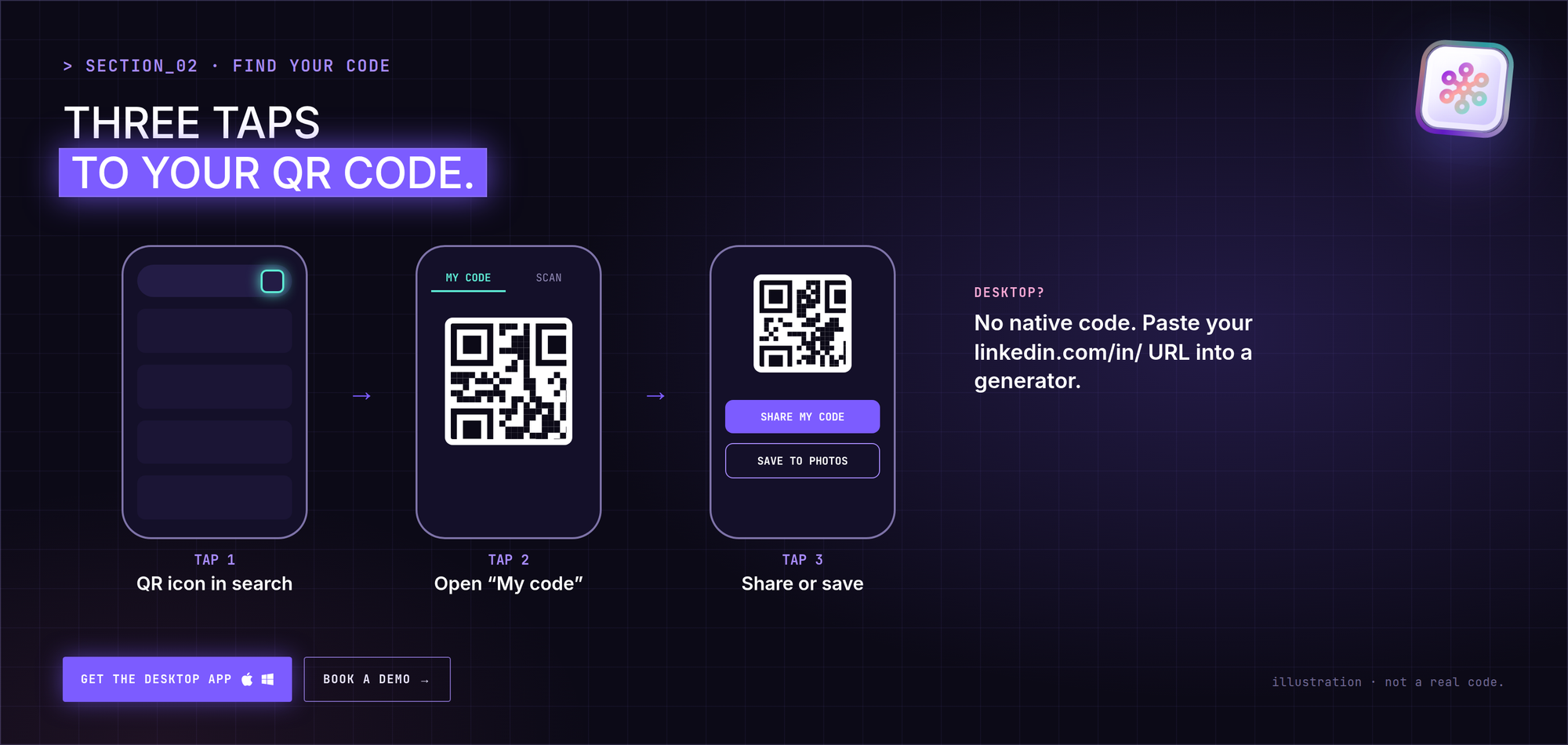
On iOS and Android:
- Open the LinkedIn app (update it if the icon is missing).
- Tap the QR icon in the search bar at the top.
- Open the My code tab.
From there you can:
- tap Share my code to send it by message or email,
- tap Save to photos / Save to gallery to keep a copy.
To scan someone else's code: open the Scan tab and point your camera at it, or scan a saved image from your photos.
Desktop: there's no built-in QR code
| Where | Native LinkedIn QR code? |
|---|---|
| iOS app | Yes |
| Android app | Yes |
| Desktop / web | No, use a generator |
On desktop, copy your public profile URL (linkedin.com/in/your-name) and paste it into a QR code generator.
Before you generate or print anything, set a clean custom profile URL (for example linkedin.com/in/anna-meyer). Changing it after printing breaks static codes.
How to create a LinkedIn QR code with a generator
- Copy your public profile URL.
- Paste it into a QR code generator.
- Download the image, at the highest resolution offered. Many free tools default to around 220 × 220 px, which is fine on screen but too small for print.
Most basic generators work in your browser for free. Paid tiers usually add colors, a logo in the center, print-ready files, and scan tracking.
Native code vs generator: which to use
| Native LinkedIn code | Third-party generator | |
|---|---|---|
| Cost | Free | Free basic tier, paid upgrades |
| Scan tracking | No | Some paid or dynamic plans |
| Customization | Fixed LinkedIn style | Colors, logo, frame |
| If your URL changes | Keeps working while your profile exists | Static codes break; dynamic codes can be redirected |
Static vs dynamic codes: a static code encodes your profile URL directly. A dynamic code encodes a short redirect link, so you can change the destination later without reprinting. Dynamic codes are usually paid, and only worth it if you print in volume.
Quick rule: native code for in-person moments, a static generated code for slides and signatures, a dynamic code only if you'll reprint at scale.
3 places your QR code actually earns connections
1. On a business card
- Put it on the back, or give it one half of the card.
- Keep a clear white margin (the "quiet zone") around it.
- Standard card sizes: 88.9 × 50.8 mm (US/Canada), 85 × 55 mm (much of Europe), 85.6 × 54 mm (credit-card size). A full 85.6 × 54 mm card at 300 dpi is 1011 × 638 px, so export the code at a resolution that stays sharp at the size you print it.
2. On your closing slide
- Make it big enough to scan from the back row: roughly a quarter of a 16:9 slide.
- Add "Scan to connect" next to it.
- Leave the slide up during Q&A. That's when people have their phones out.
3. In your email signature
- Keep it small, beside your name and title.
- It turns people who already know your name into one-tap connections.
Best practices before you print
- Test it with a second phone, and check it opens the right profile.
- Keep the quiet zone: clear white space on all four sides.
- Size for distance: small for cards, large for slides and booth signs.
- Don't change your profile URL after printing a static code.
- Add context: "Scan to connect" beats a bare code.
- Get your profile ready: a clear photo, a headline that says what you do, a banner with one message, and recent posts. The scan only gets them to the door.
After the scan: turn new connections into conversations
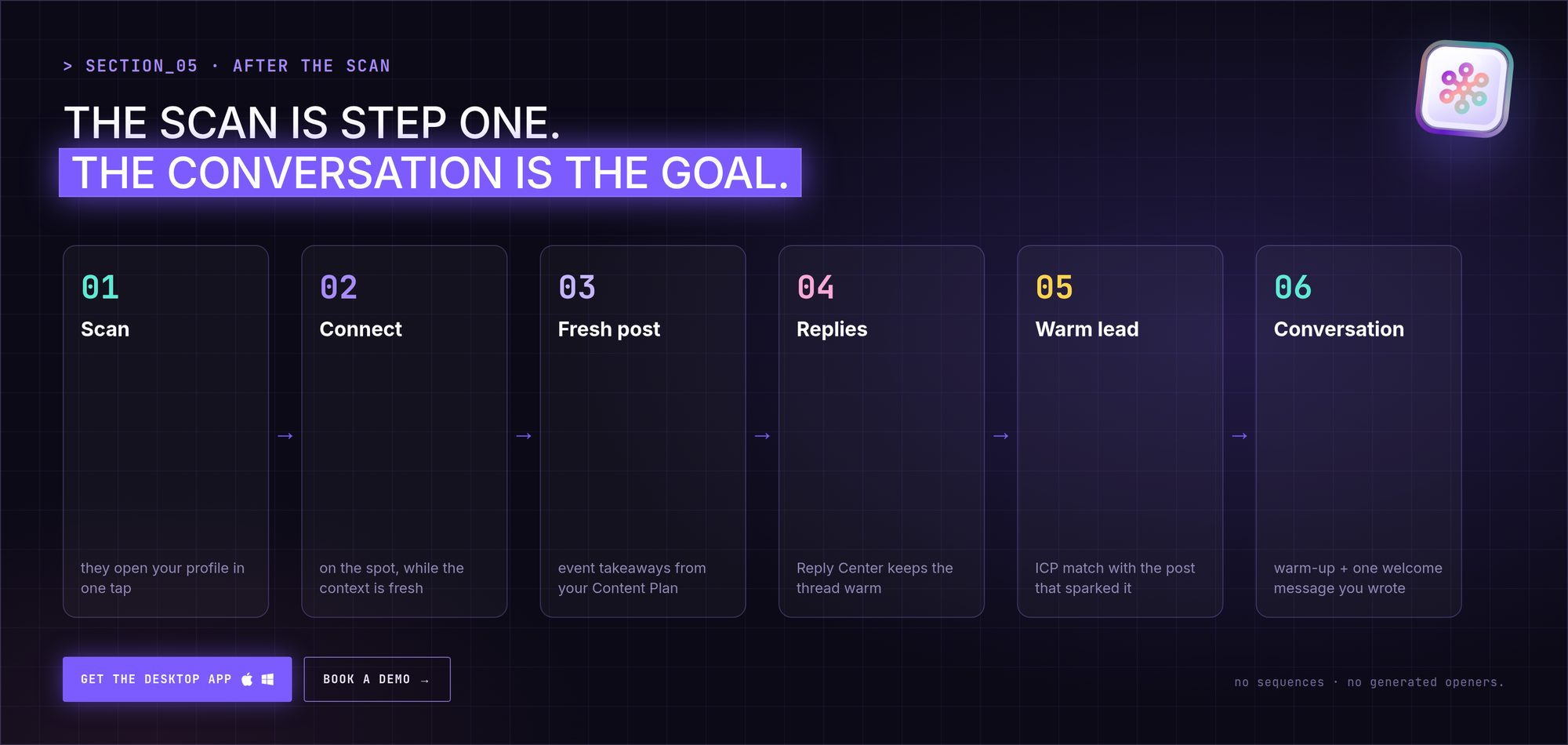
A conference can bring you dozens of new connections in a day. A week later, most of them have forgotten why they connected. The QR code did its job. The follow-up is where it's usually lost.
Here's how CrossLike helps close that gap:
- Give them something fresh to read. New connections check your profile and recent activity. The weekly Content Plan gives you a 7-day plan with ready-to-edit drafts, so there's a recent, relevant post waiting when they look. Publishing a short "takeaways from the event" post is a natural one.
- Get that post seen. Boost it with likes, comments, saves and DM shares from real professionals in the CrossLike community, and see the credit cost before you confirm.
- Keep the thread moving. New connections often comment on your first post after an event. The Reply Center drafts replies with context so nobody is left hanging.
- See who's leaning in. Warm Leads compares the people engaging with you against your ideal customer profile and shows the post that sparked their interest.
- Follow up without spamming. For people you want to meet but haven't connected with yet, like speakers or people you only met briefly, Warm Outreach runs a small, paced warm-up (likes and comments on their posts), then a connection request and one welcome message you wrote. No sequences, no generated openers.
The QR code gets you the connection. What you post and reply in the following week decides whether it turns into a conversation.
FAQ
Can I generate a QR code for my LinkedIn profile?
Yes. On mobile, your code is already in the app (QR icon → My code). On desktop, paste your public profile URL into a QR code generator.
How do I get my LinkedIn QR code on desktop?
LinkedIn doesn't offer one on desktop. Use a generator with your linkedin.com/in/ URL.
Can I put my LinkedIn QR code on a business card?
Yes. Save or generate your code, put it on the back or one half of the card with a clear white margin, and export at high resolution for printing.
How do I scan a LinkedIn QR code?
Open the LinkedIn app, tap the QR icon in the search bar, open Scan, and point your camera at the code.
How do I follow up with people I met at an event?
Connect on the spot with your QR code, then post something relevant within a few days, reply quickly to comments, and use CrossLike's Warm Leads and Warm Outreach to prioritize and warm up the people who match your ideal customer profile.