How to Create and Post a LinkedIn Carousel in 2026: The Complete Workflow
The full LinkedIn carousel workflow: plan the slides, design them, export one PDF, upload it step by step, write a caption that earns the swipe, and give the post momentum in its first hours.

Carousels are one of the few LinkedIn formats that make people do something: swipe. Each swipe is a small commitment, and a carousel people save and come back to keeps working long after a text post has faded.
But most carousels fail before anyone swipes. The slides were designed before the story was planned, the file was rejected on upload, or the caption just repeated slide one.
This guide covers the whole workflow: what a LinkedIn carousel actually is, a six-step process from plan to publish, how to write the caption, what you can and can't change after publishing, and how CrossLike helps a new carousel get the early saves and comments that decide how far it travels.
What is a LinkedIn carousel?
A LinkedIn carousel is a document post: a PDF, PowerPoint or Word file uploaded as a single attachment. LinkedIn renders it as swipeable pages in the feed, so readers move through it slide by slide instead of scrolling past one image.
Two things to keep separate:
- Organic document posts are what this guide covers. Anyone can publish them from a personal profile, a Company Page or a Group.
- Carousel ads are a paid Sponsored Content format in Campaign Manager, with different specs (image cards, not a PDF).
The 6-step carousel workflow
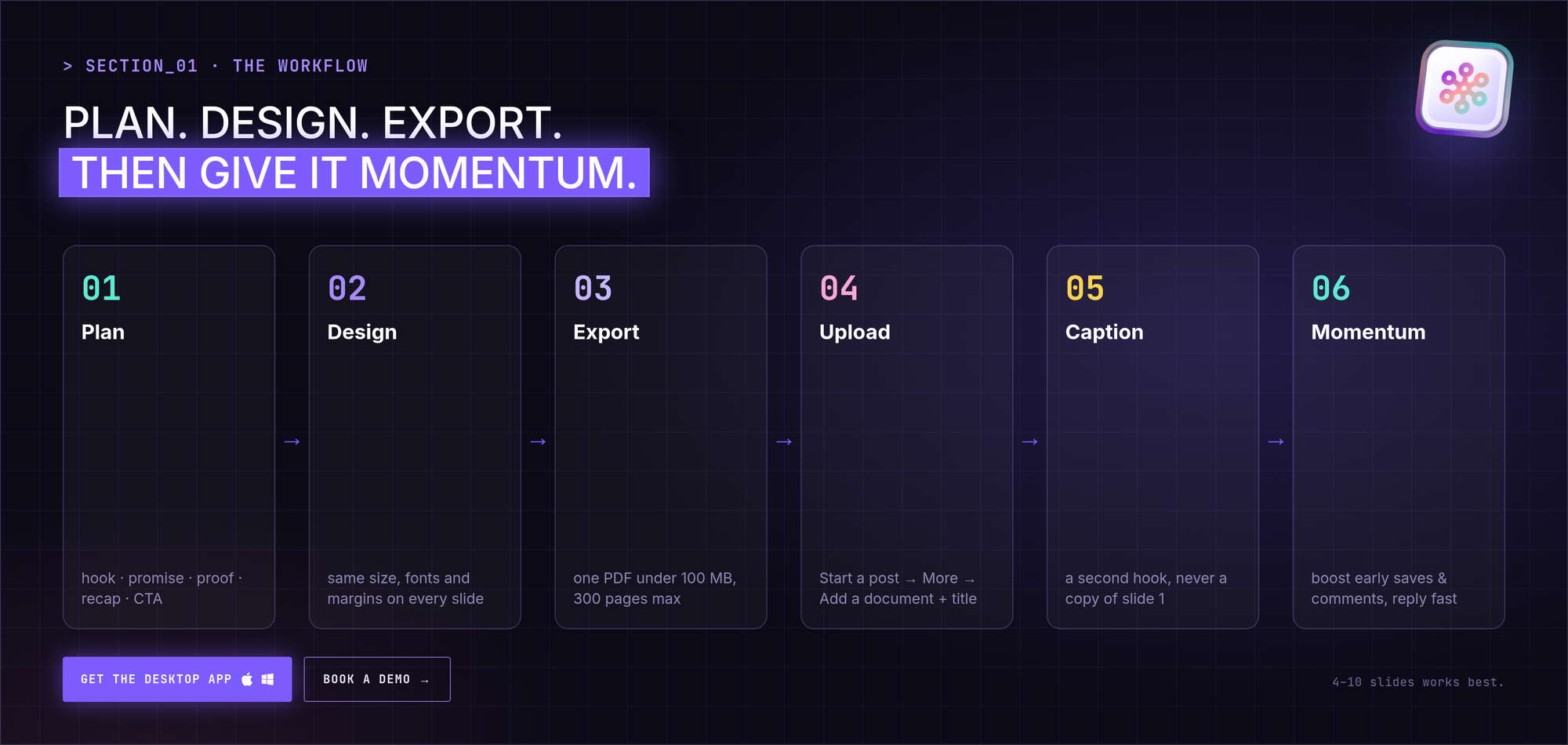
Step 1: Plan the slides before you design anything
Give every slide a job before you open a design tool:
| Slide | Role | What goes on it |
|---|---|---|
| 1 | Hook | A specific question or claim that demands an answer |
| 2 | Promise | The outcome in one sentence, so swiping feels worth it |
| 3–6 | Proof | One idea per slide: steps, numbers, named examples |
| Second-to-last | Recap | The proof slides summarized in one line, nothing new |
| Last | Call to action | One specific action: comment, follow, save, or click |
How long? LinkedIn sets no minimum. In practice 4–10 slides works: fewer than four leaves no room for hook, promise, proof and CTA; many more and readers drop off.
Where do carousel ideas come from? Your best-performing text posts. If a post got long comments or saves, the topic has demand. Turn it into a carousel that goes one level deeper. CrossLike's weekly Content Plan gives you ready-to-edit drafts, hooks and CTAs you can expand the same way.
Step 2: Design the slides
Consistency beats tool choice. Every slide needs the same pixel size, fonts, margins and accent color.
| Tool | Free option | PDF export | Best for |
|---|---|---|---|
| Canva | Yes | Yes | Fast results with a large template library |
| PowerPoint / Keynote | Depends on license | Yes | People who already think in slide decks |
| Google Slides | Yes | Yes | Drafts your team edits together |
| Figma | Yes | Yes | Full design control and reusable components |
Keep the editable working file, not only the PDF. You'll want it for the next carousel and for fixing mistakes.
For exact dimensions (1080 × 1350 portrait vs 1080 × 1080 square), see our LinkedIn carousel size guide.
Step 3: Export one PDF
Before exporting, check that:
- every page has the same dimensions,
- layered or multi-part files are flattened into one document,
- there's no embedded video or animation (they show as static images),
- images are compressed so the file stays under 100 MB.
LinkedIn also accepts PPT, PPTX, DOC and DOCX, but recommends PDF for the best upload quality.
Step 4: Upload to LinkedIn
Desktop:
- Click Start a post.
- Click More, then Add a document.
- Choose your PDF from your computer (or cloud storage).
- Add a document title. This is required, and a missing title is one of the most common reasons uploads fail.
- Write your post text.
- Click Post.
Mobile: tap Post → the More icon → Document → choose the file → add a title → Next → write your text → Post.
Step 5: Write a caption that earns the swipe
The caption is a second hook, not a copy of slide one. It shows up in reshares and search results without the document, so it has to stand on its own.
- Open with the tension or outcome the carousel resolves.
- Tell people what they'll get if they swipe ("7 slides, 4 red flags, 1 script you can copy").
- End with a clear instruction to swipe.
- Keep hashtags to two or three relevant ones.
If your caption only makes sense next to slide one, you've already lost the reader who sees it without the document.
Step 6: Give it momentum in the first hours
The first hours after publishing decide how far a post travels. For carousels, saves matter a lot: a save tells LinkedIn the post is worth coming back to.
With CrossLike you can boost a new carousel with a mix of likes, comments, saves and DM shares from real professionals in the CrossLike community. You choose the mix and see the credit cost before you confirm. Then keep the thread moving from the Reply Center, which drafts replies to new comments for you to approve.
We break down why timing matters in boosting a post in the first 30 minutes.
After you publish: what you can and can't change
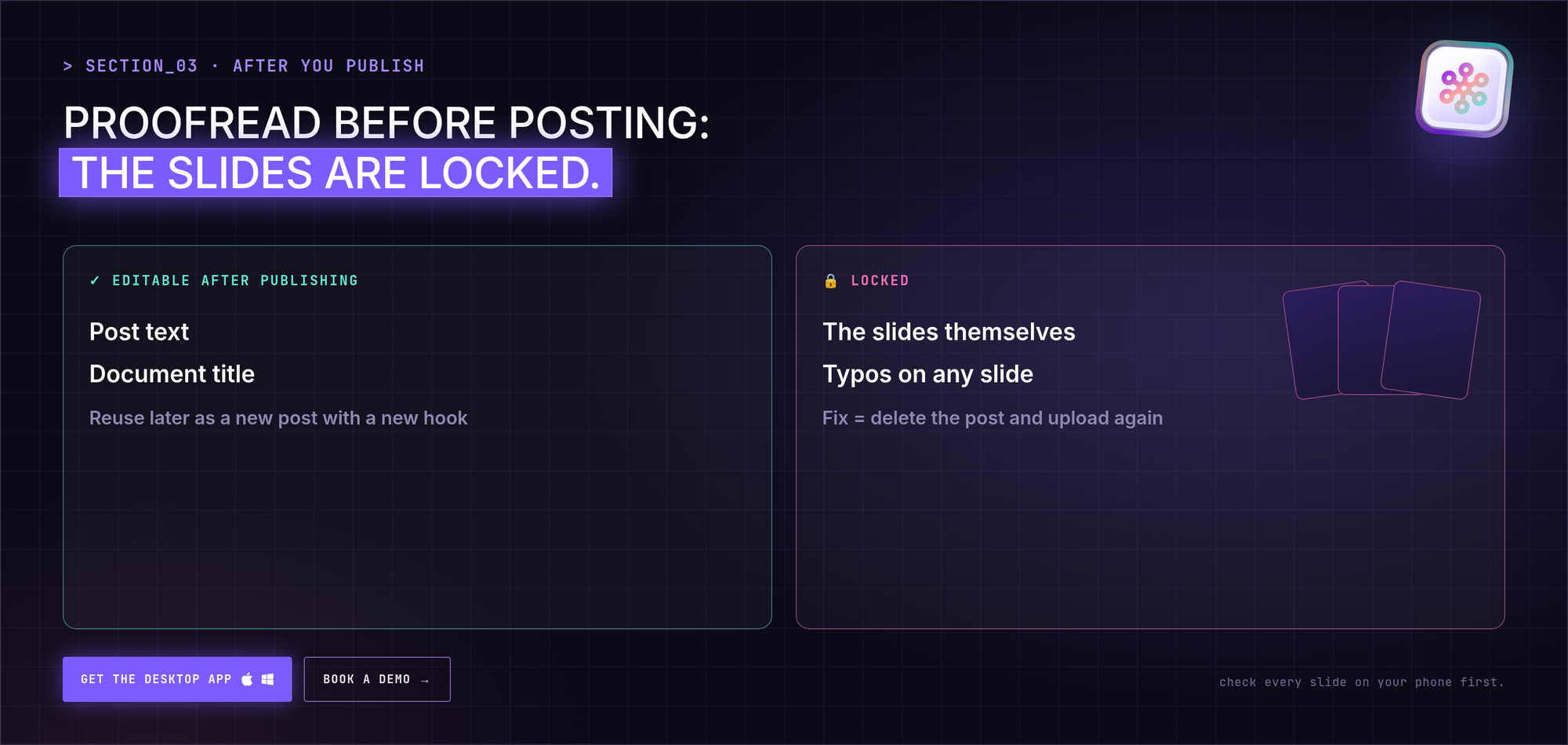
You can:
- edit the post text and document title,
- find all your documents under your profile's Activity,
- reuse a strong carousel later as a new post, with a new hook.
You can't:
- replace or edit the document itself,
- fix a typo on a slide. That means deleting the post and uploading again, which resets its engagement.
If the upload fails, check the file type, the 100 MB size limit, the 300-page limit, and that you added a title.
Common carousel mistakes
- Text sized for desktop. Most people see your carousel on a phone. Check every slide on mobile before posting.
- No CTA on the last slide. Ending on "Thanks!" wastes the attention you earned.
- Mixed page sizes or embedded animation. Both break LinkedIn's upload guidance.
- Skipping proofreading. You can't edit the document once it's live.
- A caption that repeats slide one. It gives people no new reason to open it.
- Designing before planning. No template can fix a weak story.
- Publishing and walking away. Unanswered comments in the first hours are a missed chance to extend the post's reach.
Example: a 7-slide carousel structure
An illustrative example for a recruiter posting about interviews:
- Slide 1 (hook): "Your best candidate is quietly interviewing you. Are you failing?"
- Slide 2 (promise): "4 red flags candidates notice, and how to fix each one."
- Slides 3–6 (proof): one red flag per slide, large type, one fix per slide.
- Slide 7 (CTA): "Save this for your next hiring round, and follow for more hiring breakdowns."
Same fonts, margins and accent color on every slide, so it reads as one document, not seven random images.
How CrossLike fits the carousel workflow
- Content Plan: a 7-day plan with ready-to-edit drafts, hooks and CTAs. Pick the strongest idea of the week and turn it into your carousel.
- Boost: early likes, comments, saves and DM shares from real professionals, with the cost shown before you confirm.
- Reply Center: every new comment with its context and a ready-to-edit reply, so the thread stays warm.
- Warm Leads: see which people engaging with the carousel match your ideal customer profile, and follow up with context.
Want more on performance? Read how to create a carousel post on LinkedIn that actually performs.
FAQ
What is a carousel on LinkedIn?
A single document (PDF, PPT, PPTX, DOC or DOCX) that readers swipe through page by page in the feed. It's one attachment, not a set of separate images.
Do LinkedIn carousels still work in 2026?
Yes. Document posts are a fully supported native format. How well one performs depends on the hook, the caption, relevance to your audience, and the engagement it gets early on.
Who can post a carousel?
Personal profiles, Company Pages and Groups can all upload documents, with the same steps and file limits.
What is the 3/2/1 rule on LinkedIn?
There is no official LinkedIn "3/2/1 rule". It shows up in creator advice with different meanings, so treat it as opinion, not platform policy.
Can I edit a carousel after posting?
Only the post text and title. To change the slides, you have to delete the post and upload it again.