LinkedIn Post Inspector: How to Preview and Fix Broken Link Previews
How LinkedIn builds link previews, how to use Post Inspector to refresh a stale one, the image specs that avoid tiny thumbnails, and a checklist to run before you publish and boost a link post.

You publish a post linking to your new article or landing page, and the preview shows the wrong image. Or an old headline. Or a tiny thumbnail with no title at all. Every impression that post gets now shows a broken card, and fewer people click through.
LinkedIn's free Post Inspector is the fix for most of these problems. This guide explains how LinkedIn builds link previews, how to use Post Inspector step by step, what it can't tell you, how to fix the five most common causes of broken previews, and why you should always check a preview before you put momentum behind a link post with CrossLike.
What is LinkedIn Post Inspector?
Post Inspector (at linkedin.com/post-inspector) is LinkedIn's free tool for checking how a URL will look when shared. It shows the title, image, description and URL LinkedIn has stored for that page, when it was last fetched, and lets you ask LinkedIn to fetch it again.
It's useful for three things:
- checking a page's preview before you share it,
- seeing when LinkedIn last refreshed its cached version,
- debugging a preview that looks wrong.
The page itself loads without an account, but running an inspection requires you to be signed in to LinkedIn.
How LinkedIn builds a link preview
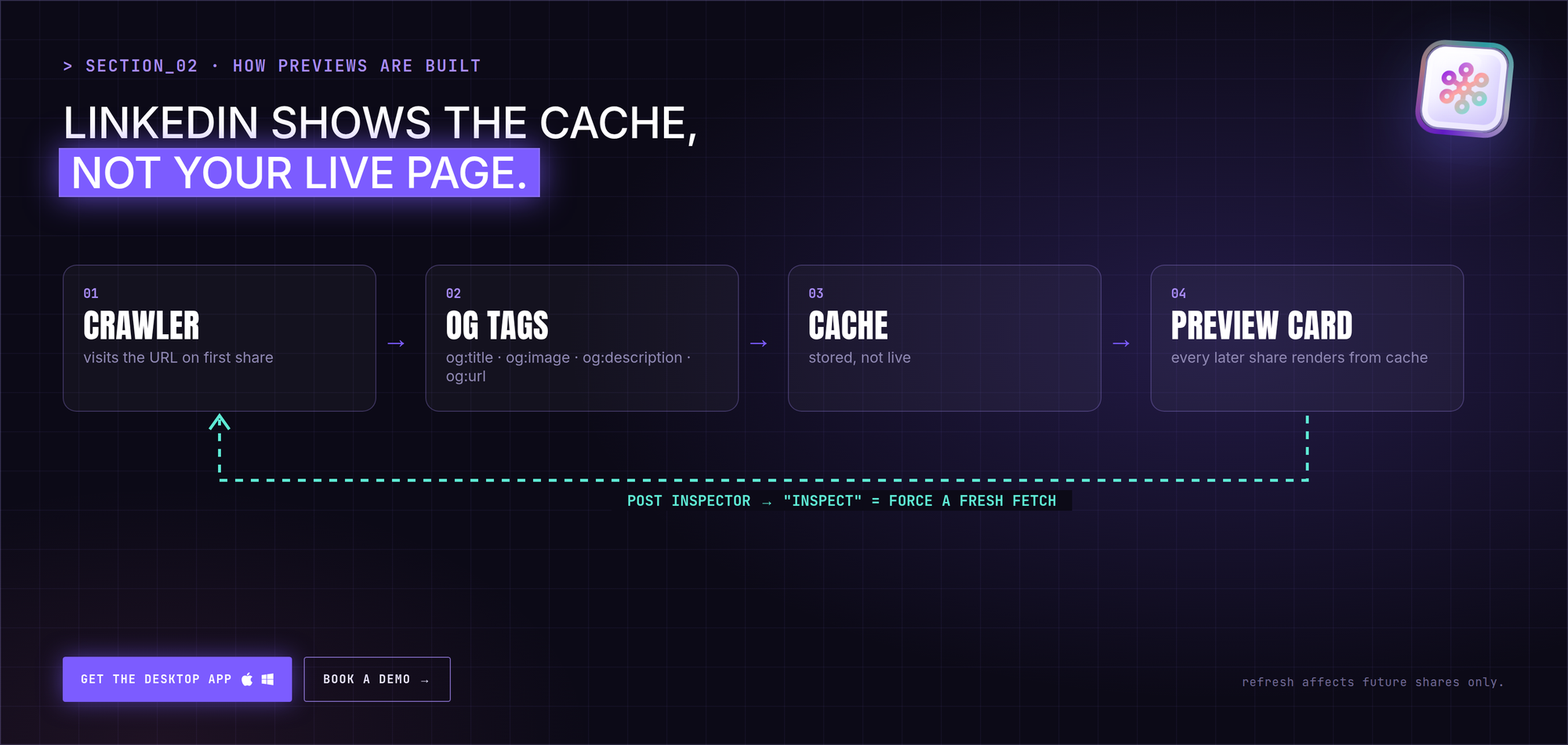
- LinkedIn's crawler visits the URL the first time someone shares it.
- It reads the page's Open Graph tags:
og:title,og:image,og:descriptionandog:url. - It stores that data in a cache.
- Every later share renders from the cache, not from the live page.
That cache is why fixes on your website don't show up on LinkedIn right away. The old version stays until you ask LinkedIn to fetch the page again.
Here's what the tags look like in a page's <head>:
<meta property="og:title" content="How we cut onboarding from 6 weeks to 6 days" />
<meta property="og:description" content="The 4 changes that made the difference, with templates." />
<meta property="og:image" content="https://example.com/images/onboarding-1200x627.png" />
<meta property="og:url" content="https://example.com/blog/onboarding" />
Most CMSs set these for you. In Ghost, WordPress (with an SEO plugin) and Webflow you'll find them under the page's social or Open Graph settings.
How to use Post Inspector, step by step
- Go to linkedin.com/post-inspector and sign in.
- Paste the full URL you plan to share.
- Click Inspect.
- Check the returned title, image, description and the "last scraped" time.
- If anything is outdated, fix the page first, then inspect again to trigger a fresh fetch.
Important: refreshing only affects future shares. Posts that are already published keep the preview card they were created with. If a live post has a broken card, you'll need to fix the page, refresh it, and publish a new post.
What Post Inspector can't tell you
- Performance: it won't explain why a post underperformed or show click-through rates.
- Your copy: it ignores your post text, hook and line breaks.
- Native posts: it only checks URLs with metadata, not text-only, image or document posts.
- Bulk checks: one URL at a time, no site-wide audit.
- Fixes: it tells you what's wrong, but you fix it on your website.
Fixing the 5 most common broken-preview problems
| Symptom | Likely cause | Fix |
|---|---|---|
| No image | Missing og:image, or the image is too small | Add an og:image pointing to a 1200 × 627 px image |
| Old or wrong image | LinkedIn is showing the cached version | Update og:image, then re-run Post Inspector |
| Wrong or cut-off title/description | Missing, duplicated or generic og:title / og:description | Write page-specific values for both |
| Small thumbnail instead of a full card | Image narrower than 401 px | Use an image at least 1200 px wide at 1.91:1 |
| Preview won't update | Crawler blocked, login wall, or a redirect chain | Make the page public, remove extra redirects, inspect again |
About redirect chains: link shorteners, tracking redirects and chains of hops can stop the crawler before it reaches your real page. Share the final URL whenever you can.
About tracking parameters: a URL with different UTM parameters can be treated as a different URL with its own cache. Inspect the exact URL you're going to share.
Image specs for LinkedIn link previews
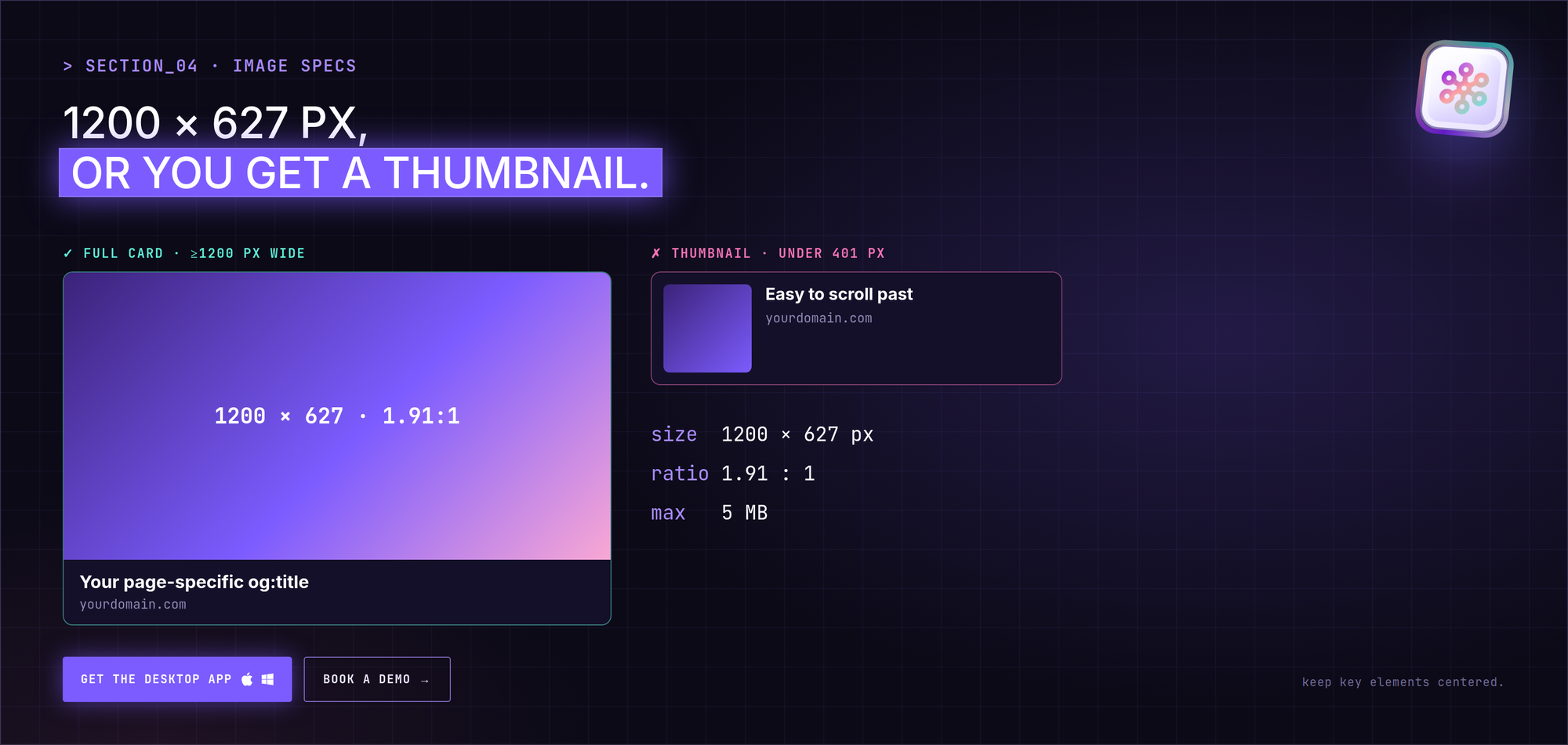
- Size: 1200 × 627 px minimum
- Ratio: 1.91:1 (landscape)
- Max file size: 5 MB
- Under 401 px wide: shown as a small thumbnail instead of a full card
Don't confuse this with native image posts. Photos you upload directly usually work best as 1080 × 1080 (square) or 1080 × 1350 (portrait). Link preview images are landscape. Square and vertical images may be cropped in link previews.
Also keep the important part of the image, like a headline or a face, toward the center. Different surfaces crop slightly differently.
Check the preview before you boost a link post
A broken preview is annoying on any post. On a post you're actively promoting, it's wasted effort: every extra impression shows the wrong card.
Before you give a link post momentum with CrossLike, run this quick check:
- Inspect the exact URL (with any UTM parameters) in Post Inspector.
- Confirm the image, title and description are the current ones.
- Publish the post.
- Then boost it. Choose the mix of likes, comments, saves and DM shares from real CrossLike community members, and see the credit cost before you confirm.
- Stay in the thread. The Reply Center drafts replies to new comments so you can respond while the conversation is warm.
- Follow up with the right people. Warm Leads shows which engagers match your ideal customer profile, and the post that caught their interest.
Many creators put the link in the first comment instead of the post body and write a native post that stands on its own. Either way, check the preview. It still appears on the comment.
A pre-publish checklist for link posts
- The page is public, with no login wall.
- The URL goes straight to the page, without a chain of redirects.
og:title,og:descriptionandog:imageare set and page-specific.- The image is 1200 × 627 px, under 5 MB, with key elements centered.
- Post Inspector shows the current version.
- The post text works even if nobody clicks.
- You have a plan for the first hours: reply to comments, and boost if the post deserves it.
Want to understand why the first hours matter so much? Read why your LinkedIn impressions dropped and how to fix it.
FAQ
Why isn't LinkedIn Post Inspector working?
Usually the page can't be reached (it's private, behind a login, or blocks crawlers), the Open Graph tags are missing, or there's a redirect chain. Fix those and inspect again.
Do I need to log in to use Post Inspector?
The page loads without an account, but clicking Inspect requires signing in to LinkedIn.
How do I clear LinkedIn's cache for a link?
Paste the URL into Post Inspector and click Inspect. LinkedIn fetches the page again and replaces the cached title, image and description for future shares.
How long does LinkedIn cache link previews?
LinkedIn doesn't publish a cache duration. Assume the preview stays cached until you refresh it through Post Inspector.
Are there similar tools for other platforms?
Yes. Facebook has the Sharing Debugger, and X uses its own card tags. Each platform keeps its own cache, so refresh each one separately.